Top 6 Calendar Apps for 2026: Plan Your Days Smarter
If time is your most valuable resource, your calendar is your control panel. It’s where work, meetings, life admin, and personal plans all collide — and the right calendar app can make that feel structured instead of overwhelming.
In 2026, calendars are not just boxes with dates. They:
- Sync across devices
- Help you coordinate with other people
- Support hybrid/remote work
- Sometimes even use AI to plan your day for you
Here are 6 calendar apps we think are worth considering — whether you want something simple and free, beautifully designed, or smart enough to help you schedule your whole week.
What we look for in a great calendar app
When we recommend tools, we’re not just looking for “it works.” A calendar has to live at the center of your day, so we pay attention to:
- Ease of use
You should be able to add events in seconds, drag things around, and see what’s next without digging into menus or reading documentation. - Intentional design
Time zones, overlapping events, different calendars for work and personal life — a good calendar handles all of this gracefully, not clumsily. - Power and flexibility
Multiple views (day/week/month), custom calendars, integrations with other tools — all of that matters once your schedule gets busy. - Sharing & collaboration
You rarely live in a vacuum. A solid calendar makes it easy to invite others, share calendars, and see who’s free when. - Works everywhere
Laptop at work, phone on the go — your calendar should be available on all your main devices.
With that in mind, here are our top picks.
1. Google Calendar — Best free calendar for teams
Best for: Anyone who lives in Google world (Gmail, Docs, Meet) or needs a free, reliable calendar for work and personal life.
Google Calendar is simple enough for everyday use and powerful enough for busy teams. You can:
- Quickly add events using natural language
- Switch between day, week, and month views
- Create multiple calendars (work, personal, side projects) and turn them on/off
- Invite others, add Google Meet links, and share entire calendars
It also plays nicely with almost everything: project management tools, video calls, booking tools, AI schedulers, and more.
If your team already uses Google Workspace, Google Calendar is usually the default hub for meetings, availability, and shared calendars. For most people, this is the first calendar worth trying.
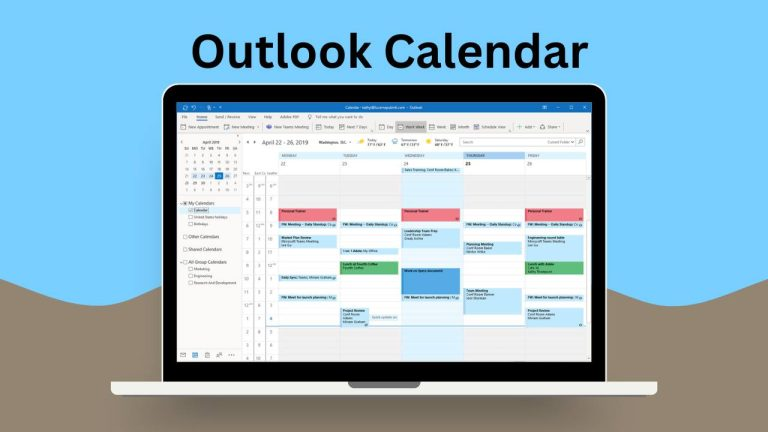
2. Microsoft Outlook Calendar — Best for Microsoft users
Best for: Teams and companies built around Microsoft 365 and Outlook.
If your work life runs on Outlook, Teams, and Microsoft 365, Outlook Calendar is the obvious choice. It comes integrated with:
- Email + calendar in one place – turn emails into calendar events in a couple of clicks
- Scheduling tools – see when colleagues are free and use Scheduling Assistant to find meeting times
- Shared calendars – for teams, departments, and resources (like meeting rooms)
The big advantage: you don’t have to jump between tools. Your email, calendar, contacts, and meetings all sit together.
It’s a strong option for anyone in a Microsoft-heavy environment who wants an all-in-one communication and scheduling setup.
3. Calendar.com — Best for booking external meetings
Best for: People who often schedule meetings with clients, students, or anyone outside their organization.
Calendar.com combines two things in one:
- A regular calendar to manage your own schedule
- A built-in booking page so others can easily book time with you
You can:
- Set when you’re available for meetings
- Share a public link so people can pick a time that works
- Let Calendar handle time zones, confirmations, and reminders
- Optionally connect payments for paid calls or sessions
Instead of endless back-and-forth emails (“Does Tuesday at 3 work for you?”), you send one link and let the other person choose. If you do consulting, coaching, calls with clients, or interviews, this kind of integrated scheduler is very handy.
4. Apple Calendar — Best simple calendar for Apple users
Best for: People fully in the Apple ecosystem (iPhone, Mac, iPad).
Apple Calendar is clean, minimal, and already there on your Apple devices. It:
- Syncs via iCloud across iPhone, iPad, and Mac
- Can connect to Google, Exchange, and other calendars
- Lets you add events using natural language on Mac (“Dentist on Friday at 10”)
- Integrates with Apple’s Reminders so due dates show up on your calendar
It’s not overloaded with features — and that’s part of the charm. If you mostly use Apple devices and want something that just works, Apple Calendar is a solid “set it and forget it” option.
5. Fantastical — Best design & power features
Best for: People who live in their calendar and want something powerful, polished, and pleasant to use.
Fantastical is one of those apps people fall in love with. It focuses on:
- Excellent natural language input
Type “Coffee with Alex next Thursday at 9 in the office” and it understands everything. - Thoughtful design details
Agenda view, smart handling of duplicate events across calendars, and a layout that makes it easy to see what’s important at a glance. - Deep integrations
It connects with iCloud, Google, Exchange, and more, so you can pull all your calendars into one beautiful interface.
It’s especially nice if you manage multiple calendars, juggle a lot of events, or just appreciate tools that feel “crafted” rather than generic.
6. Morgen — Best AI calendar & time-blocking assistant

Best for: People who want an AI-powered planner that doesn’t just store events but actually helps structure the day.
Morgen takes the classic calendar idea and adds AI on top:
- Connects to your existing calendars (Google, Outlook, iCloud, etc.)
- Pulls in tasks from tools like Todoist and others
- Helps you turn tasks into blocks of time on your calendar
- Automatically reshuffles your plan if something changes
The idea: instead of a to-do list that never ends, you get a realistic schedule for your day and week. Morgen becomes your “AI scheduling brain,” helping you decide when you’ll do what, not just what needs to be done.
It’s especially appealing if you love time-blocking or have a lot of tasks competing for your attention and want help turning plans into a concrete schedule.
How to choose the right calendar for you
You don’t need the “perfect” app. You need the one that fits how you work and live. A few quick questions to help you decide:
- What ecosystem are you in most of the day?
- Google → Start with Google Calendar
- Microsoft → Try Outlook Calendar
- Apple → Begin with Apple Calendar, upgrade to Fantastical if you want more
- Google → Start with Google Calendar
- Do you book a lot of meetings with people outside your company?
- Look at Calendar.com
- Look at Calendar.com
- Do you want help planning your time, not just storing events?
- Explore Morgen for AI scheduling and time-blocking
Whatever you choose, your calendar should feel like a partner, not a punishment. Once it’s set up right, it stops being “just a tool” and becomes your quiet, reliable system for keeping work and life under control.
Comments
No comments yet. Be the first to comment!
Leave a Reply